
Master Binom Postback Tracking: S2S Guide for 2026
Quick Answer: Binom postback tracking uses a server-to-server (S2S) postback URL to send conversions back to your tracker without pixels or cookies.
You add the {clickid} token to your offer link, the affiliate network stores that ID, then fires it back through a postback like https://binom.org/click?cnv_id={sub1}&payout={sum}&cnv_status={status}. Binom matches the returning ID to the original click, so every sale, lead, or rebill shows up with full stats.
S2S tracking stays accurate even when cookies get blocked, so it suits CPA, nutra, gaming, and subscription offers alike. Below is a clean setup walk through with real code, status schemes, and fixes for common postback problems.
How S2S Postback Talks Between Two Servers
Postback tracking runs on one simple idea. You pass a click ID out, and the network sends that same ID back on conversion.
Binom uses cookieless server calls. So data moves server to server, not browser to browser.
That matters in 2026. Browser cookie restrictions keep tightening, and server-to-server conversion tracking dodges that problem entirely.
Three methods can record revenue in Binom: Postback URL, Conversion Pixel, and manual updates. Postback URL stays the most reliable for affiliate offers.
Reading the Binom Postback URL Structure
Find your postback on the Tracking links tab inside tracker settings. Each part of the link does a specific job.
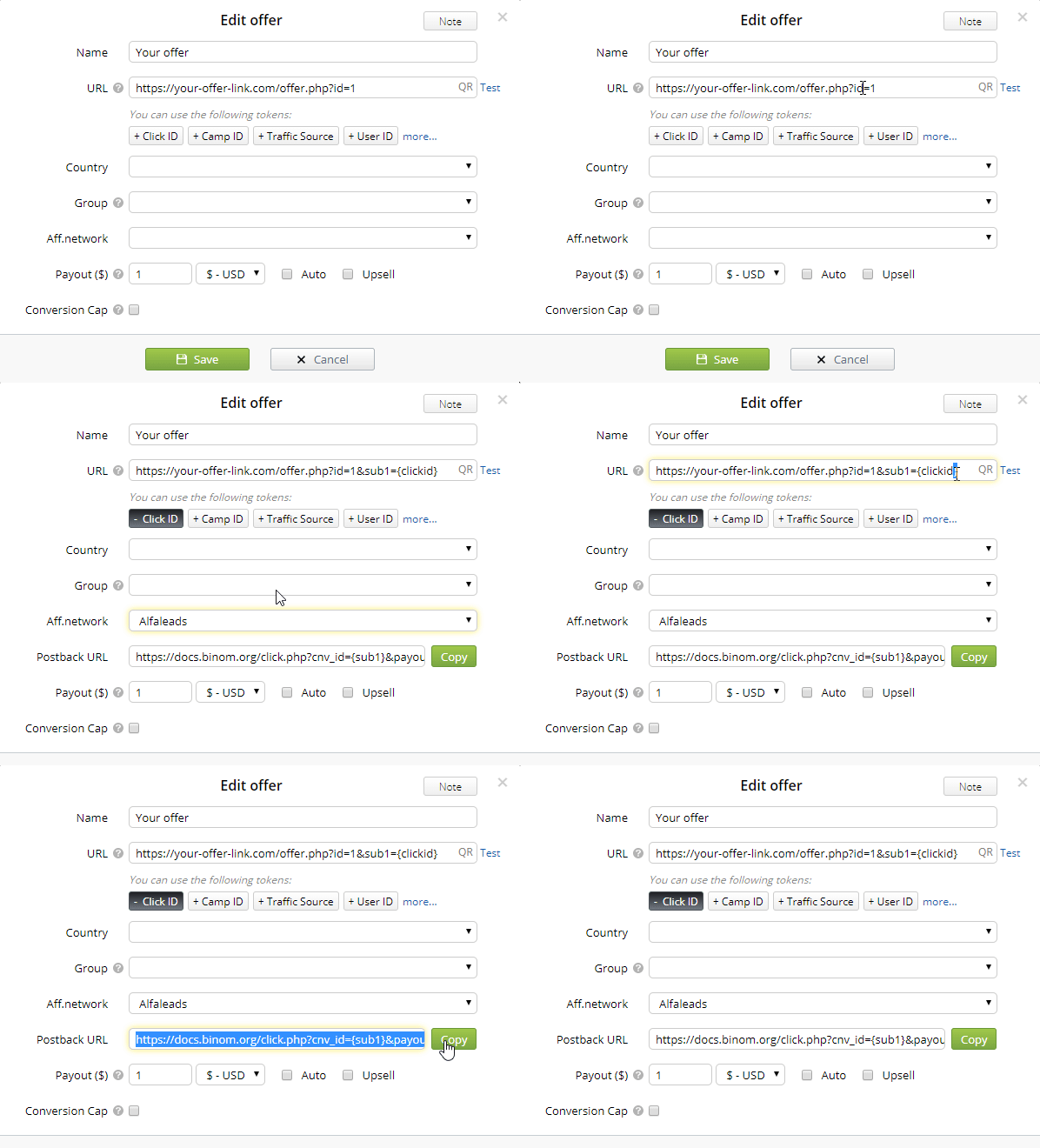
Here is a real Binom postback broken down:
https://yourdomain.com/click?cnv_id={clickid}&payout={sum}&cnv_status={status}Two extra flags help with edge cases. Use disable_postback=1 to stop an outgoing postback to your traffic source. Use to_offer=N to record a click for a specific offer in your path.

Binom Postback Secrets Every Affiliate Must Know
exclusive
Unlock Binom postback tracking hacks, maximize conversion accuracy, and boost affiliate campaign profits with 40% savings.
SAVE UP TO 40%
Wiring the {clickid} Token Into Offer Links
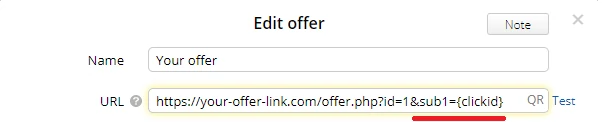
The {clickid} token is the heart of the whole system. Without it, no conversion can match back.
Add {clickid} to your offer link, right after the parameter your network reads. Many networks call this sub1. So your offer URL gets &sub1={clickid} attached.
Now watch what happens on a click. Binom swaps {clickid} for a unique value, so the link becomes …sub1=57571ktb7a0bl.
That stored ID is your matching key. When the sale fires, the network returns it through cnv_id, and Binom links the dots.
One caution worth remembering. Every network uses its own tokens for {sub1}, {sum}, and {status}, so check with their support before you go live.
Loading CPA Networks Across Verticals
Binom ships with ready-made affiliate network templates. Load one, pick that network on offer creation, and most setup vanishes.
The template logic stays the same across e-commerce, nutra, and gaming. Only the tokens change per network. Here is a quick map:
| Vertical | Typical setup | Status focus |
|---|---|---|
| E-commerce | Upsell box on, summed payouts | pending, approved, rejected |
| Nutra (CPA) | Single payout, hold period common | hold then approve/reject |
| Gaming / iGaming | First deposit plus rebills | new, rebill, buyout |
For a manual setup, you still follow one flow. Create the affiliate network, copy the global postback, paste it into the network panel, then build the offer with {clickid} inside the link.
A real gaming/nutra style postback looks like this:
https://yourdomain.com/click?cnv_id={sub1}&payout={sum}&cnv_status={status}&cnv_currency=USDSet currency to USD so payouts read in $ across reports.
Status Schemes That Sort Pending, Approved, Rejected, Trash
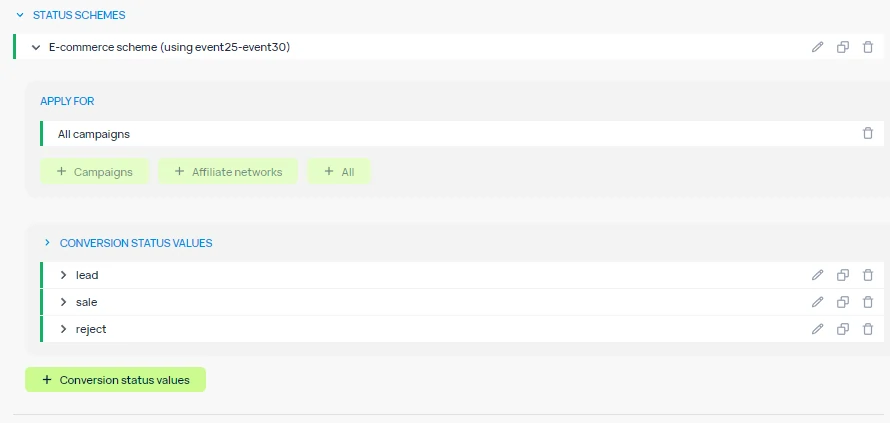
Binom turns raw statuses into real metrics through conversion status schemes. You assign a status, and the tracker builds the maths around it.
To pass a status, add &cnv_status={CONVERSION_STATUS} to your postback. Need a second layer? Add &cnv_status2= as well.
A common four-status model maps cleanly:
Turn on the e-commerce status scheme under Settings, Stats, Status scheme settings. Then map each field to your statuses.
This scheme unlocks columns like Approve %, Reject %, Expected Revenue, and Expected ROI. One note on limits. The e-commerce scheme uses event1 to event5, so keep those events free for it.
Capturing Multi Rebill Subscription Revenue
Subscription offers need their own logic, and Binom has a dedicated scheme for it. Tick the Subscription scheme box under Settings, Stats, Status scheme settings.
Map four conversion states here:
That gives you subscription-grade metrics. Think Rebills count, Unsubs %, RoS (rebills per subscription), Buyouts, and eCPA.
To stack repeat payouts on one click, check the Upsell box on the offer. Now multiple postbacks with the same clickid sum up, rather than the last payout overwriting the rest.
A rebill postback often reuses the same structure with a rebill status value:
https://yourdomain.com/click?cnv_id={clickid}&payout={sum}&cnv_status=rebillMind the event clash. The subscription scheme uses event5 to event8, so avoid those events on subscription campaigns.
Passing Conversions Back to Your Traffic Source
Tracking the network side is half the job. You often need the conversion at your ad source too.
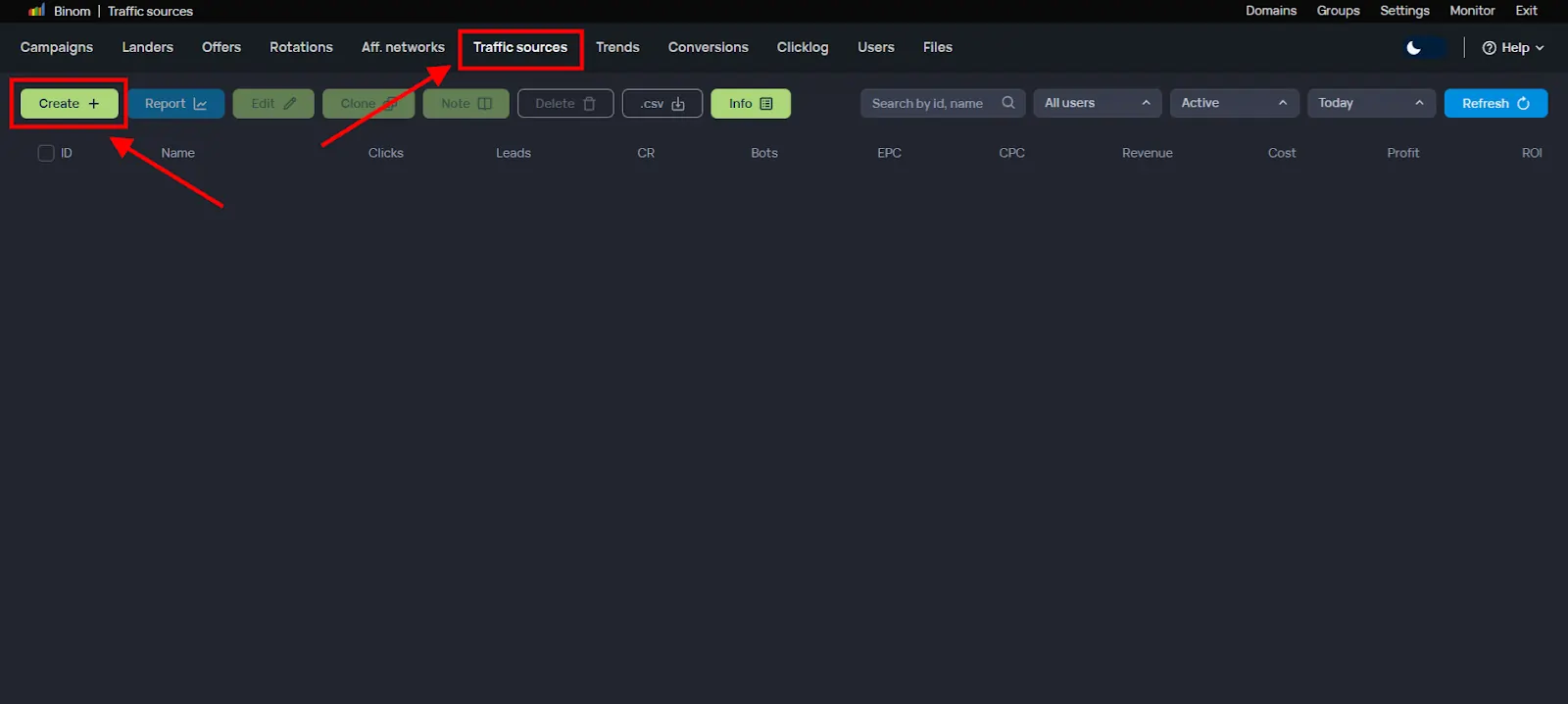
The flow is short. In your traffic source, create a conversion goal and copy the goal tag. Then load the source template in Binom and paste that tag where it says replace.
PropellerAds shows the pattern well. Copy the S2S postback from the ad panel, load the PropellerAds template, and swap placeholders for your real aid and tid. Skip that swap and conversions break.
Some networks use different tokens on the return trip. RollerAds, for one, wants ={externalid} instead of ={clickId} in the link.
Troubleshooting Postback Problems Fast
Most failures trace back to a few repeat causes. Run this checklist before blaming the tracker.
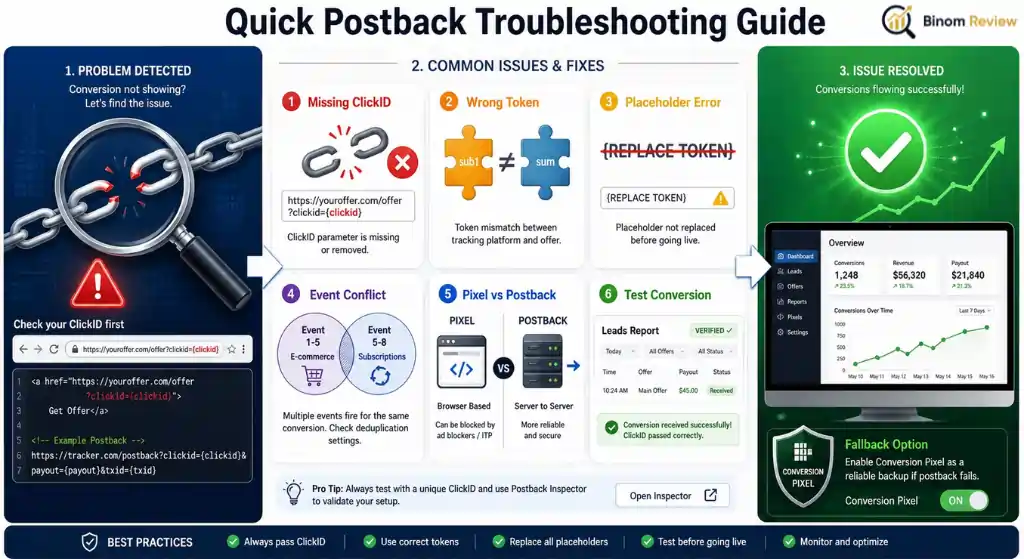
Run a test conversion to verify. Fire the postback, then check the Leads report, the Conversions section, or the Clicklog tab for the hit.
If a network cannot send postbacks at all, fall back to the Conversion Pixel from Settings, Tracking links.
Putting Your First Postback Live
Here is the full sequence in order, end to end:
- Create the affiliate network and copy its global postback URL.
- Build the offer, paste the offer URL, then pick the network so {clickid} attaches.
- Paste your Binom postback into the network's global S2S field.
- Pick or build a status scheme for your vertical.
- Add a traffic source and set its conversion goal.
- Launch a campaign and send a test click plus conversion.
Once verified, conversions land in the tracker, the network, and the traffic source together. That triple match is the sign your S2S setup is healthy.
Ready to set this up on your own account? You can start with Binom here and load a network template in minutes.